1) Preparation
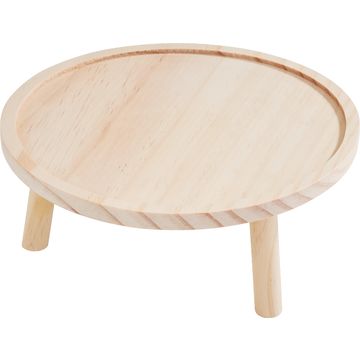
Gather all your materials so you can get started right away. Then coat the wooden tray with KREUL “ clear varnish ” to prevent it from warping too much later on. This also protects the wood from the moisture in the casting compound. Let the “ clear varnish ” dry completely.
2) Mixing the Casting Compound
Put some of the KeraHobby casting powder into a mixing cup and gradually add water. Stir the mixture thoroughly until it reaches a smooth, creamy consistency. 3) Pour the casting mixture into the tray Carefully pour the mixed casting mixture into the tray until it is completely filled to the brim. Now let it dry thoroughly. If any casting mixture has spilled over, you can carefully remove it after it has dried using a fine- sandpaper and wipe away the resulting dust.
4) Prepare the SVG in the plotter software
These instructions are for use on a PC running the Windows operating system. The button layout may differ on mobile devices and other operating systems. Download the SVG file and open it in the Cricut Design Space program. To do this, select “Workspace,” click “Upload,” and select the SVG file.
5) Plotting the designs
Select all designs in the workspace and click “Split” to edit them individually. If you want to combine designs, select them and click “Combine.” Then click “Create.” Now you can review the preview of the designs and start the cutting process by clicking “Continue.”
6) Weeding and Transferring
Now you can weed the plotted designs and remove the excess film. Then cut the transfer film to size and stick it onto the designs. Smooth it down firmly with a scraper and carefully peel off the designs so that they remain adhered to the transfer film.
7) Applying the Design to the Tray
Finally, place the plotted design on the tray and press it down carefully using the scraper . Then slowly and carefully remove the transfer film.
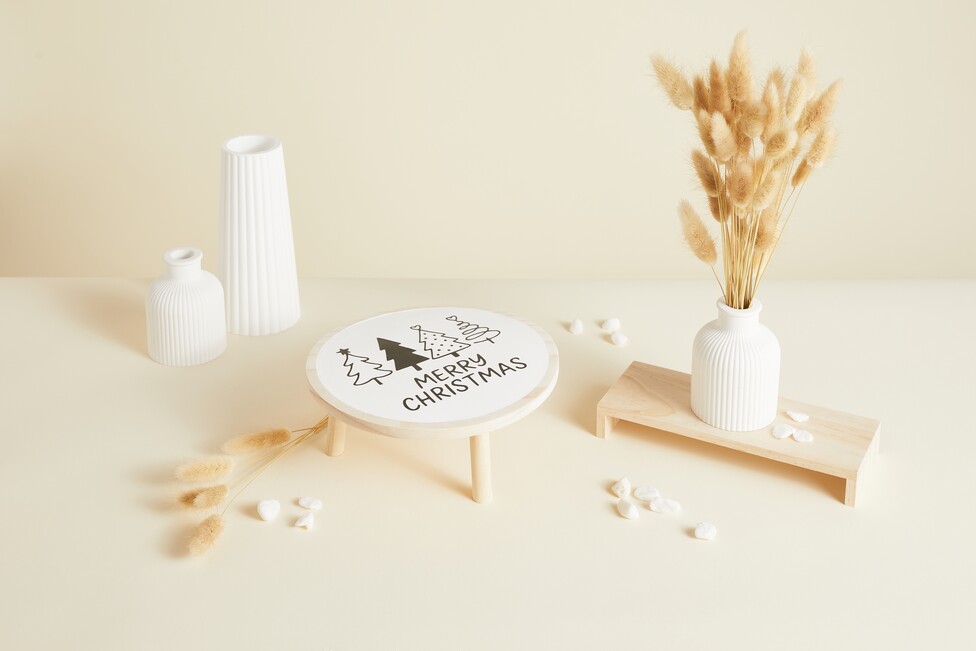
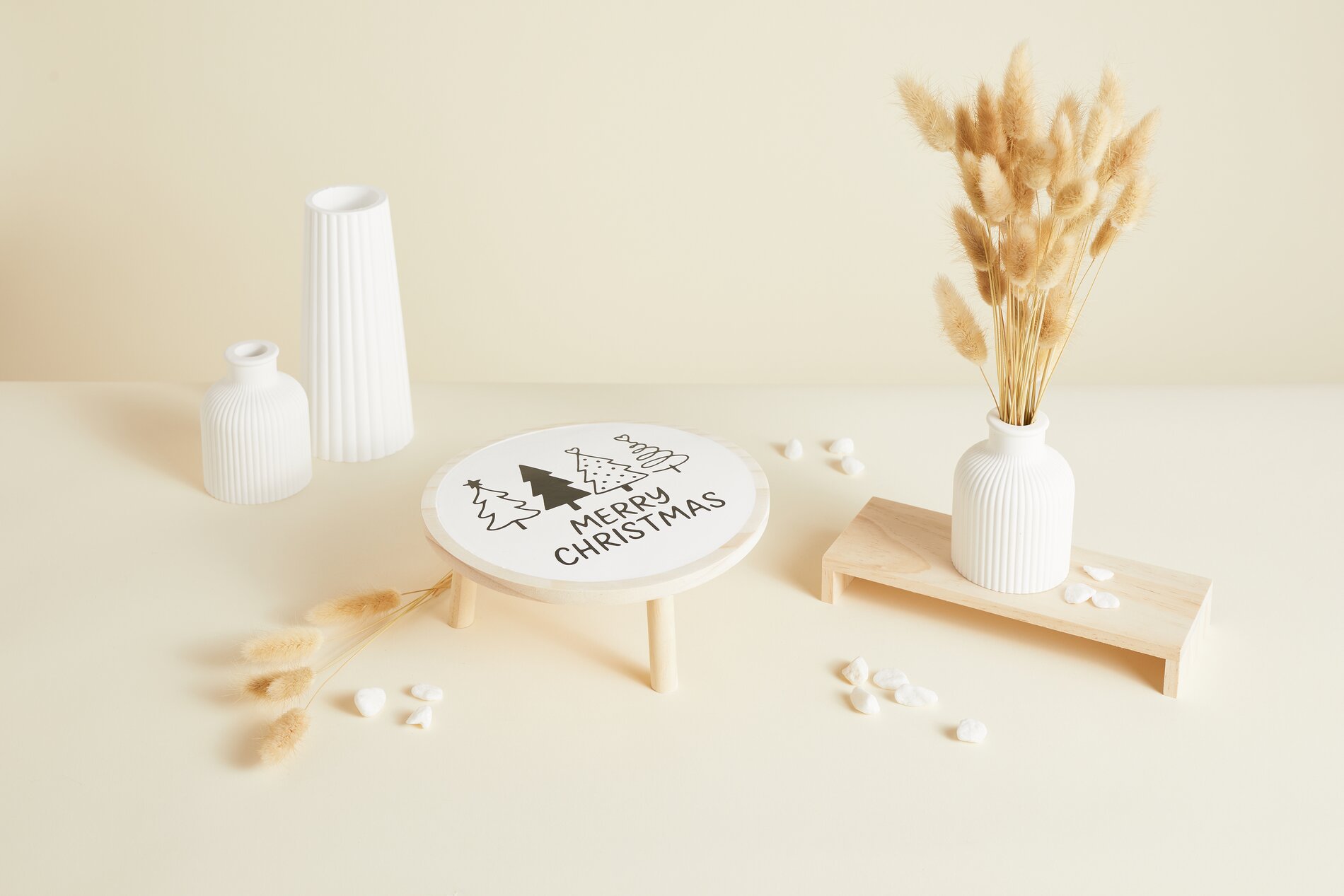
Now your tray with the plotted design is ready!
Now it’s your turn! If you need more designs and inspiration, check out our extensive Selection of tutorials and ideas!